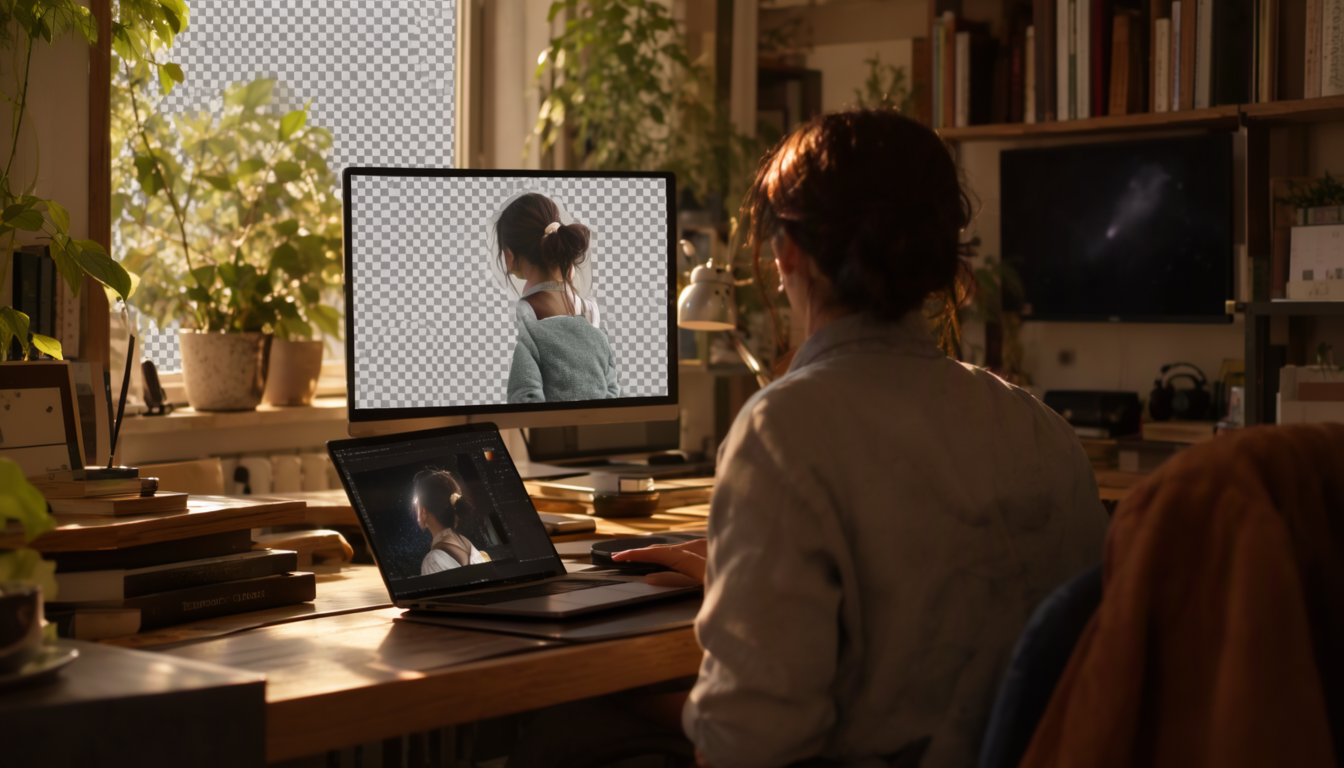
You don't need a design subscription to cut a subject out of a photo. A handful of free tools will do it in about ten seconds, and some of them don't even ask for an account. Here's how to get from "photo with messy background" to "clean PNG on my desktop" without touching Canva at all.
Why everyone reaches for Canva first
Canva is everywhere, and its templates make it tempting for any image job. The catch: the one-click Background Remover lives behind Canva Pro. So if you only need this done once or twice a month, paying for a full design suite just to erase a background is like buying a drill press to hang one picture.
The good news is that background removal has become its own little category of tool, and the free options are genuinely good now. Here are the ones worth knowing about.
Option 1: A dedicated free web tool
This is the fastest path. SimpleBGRemover is one of them: open it in your browser, drop in a photo, wait a few seconds, download a PNG with the background gone. No account, no watermark, nothing to install. Other tools in this category work the same way; some give you a few free uses and then ask for credits or a subscription, so check what "free" actually means before you upload your best shot.
The steps are basically: 1. Upload the image (drag and drop works). 2. Let the model predict the subject mask. This is where the AI does its thing: it classifies every pixel as foreground or background based on patterns learned from millions of training images. 3. Preview the result, then download the PNG.
That's it. For most photos of products, people, and pets, this is all you need.
Option 2: remove.bg
Probably the most famous name in this space. The free tier handles single images well, and edge quality on typical subjects is solid. The trade-off is resolution: free downloads are capped at a smaller size, which is fine for web use but not if you're planning to print large. If your image is small enough that the cap doesn't matter, it's a perfectly good choice.
Option 3: Photopea, when you want control
Photopea is a free browser-based editor that feels a lot like Photoshop. It won't remove backgrounds with one click as reliably as a dedicated AI tool, but its selection tools (magic wand, quick select) let you hand-tune tricky edges. This is the right pick when the automatic result misses something: a thin strap, a glass bottle, wispy hair. You spend two or three minutes brushing in the parts the AI got wrong instead of starting over.
Option 4: GIMP, for offline and power users
GIMP is free desktop software with a Foreground Select tool that works well if you're patient. It's more setup than a web page (install it once, then it's yours forever), but there's no upload step, no queue, and no wondering what happens to your file after you close the tab. If privacy matters or you process images regularly on one machine, this is worth the learning curve.
Option 5: Your phone might already do it
If you're on a recent iPhone (iOS 16 or later), long-pressing a photo in the Photos app lifts the main subject off its background and copies it to your clipboard. You can paste that straight into Messages, Notes, or any editor. It's surprisingly good for people and pets, though it stops at one subject per image and you can't fine-tune edges much.
Getting clean results no matter which tool you use
The tool matters less than the input photo. A few things that make every background remover work better: - Shoot with contrast between subject and background. A dark jacket on a white wall is easy; a gray cat on a gray couch is not. - Keep the background simple. Busy patterns confuse the mask prediction, especially near edges. - Expect hair to be imperfect. Fine strands are the hardest case for any model, U2-Net style or otherwise. If you need perfection there, plan to touch up the edge in an editor like Photopea. - Zoom in before you download. Check the edges at 100% or more and look for leftover background pixels or a faint halo around the subject.
After the download: keep it a PNG
One last detail people trip over: file format. If you save the cutout as a JPEG, the transparency gets flattened onto whatever background color the editor chose (usually white), and you lose the ability to place it elsewhere later. Save the raw cutout as a PNG so the alpha channel survives. Then make copies for each use case: - A version on white or light gray for web listings and email. - The transparent original, kept in a folder, for any future composite.
It takes ten seconds and saves you from re-running the removal next time you need the same subject somewhere else.
Which one should you pick?
If it's a one-off image: use a dedicated free web tool, done in under a minute. If the automatic edge is close but not quite right: open Photopea and fix the few problem spots. If you do this weekly on your own machine: install GIMP once and never think about uploads again. And if you're already living in your phone's camera roll: try the built-in subject lift before anything else.
None of these require Canva, a credit card, or a design degree. Pick whichever fits how often you actually need this done, upload a photo, and get on with your day. If there's an image sitting on your desktop right now that needs its background gone, SimpleBGRemover will handle it free in about ten seconds.